
04-Minimal IoT App Development
Create a Project
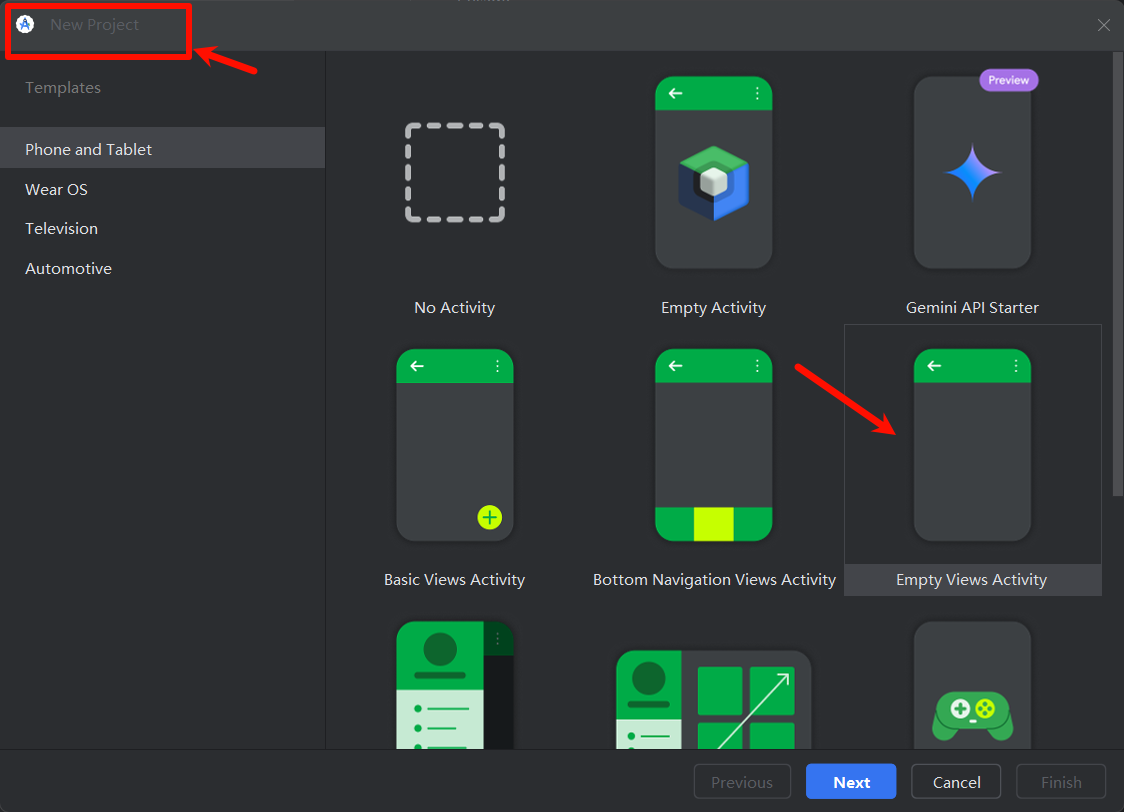
Project Settings
Fill these in according to your own project, then click Finish in the bottom-right corner.
Everything below is explained using API29.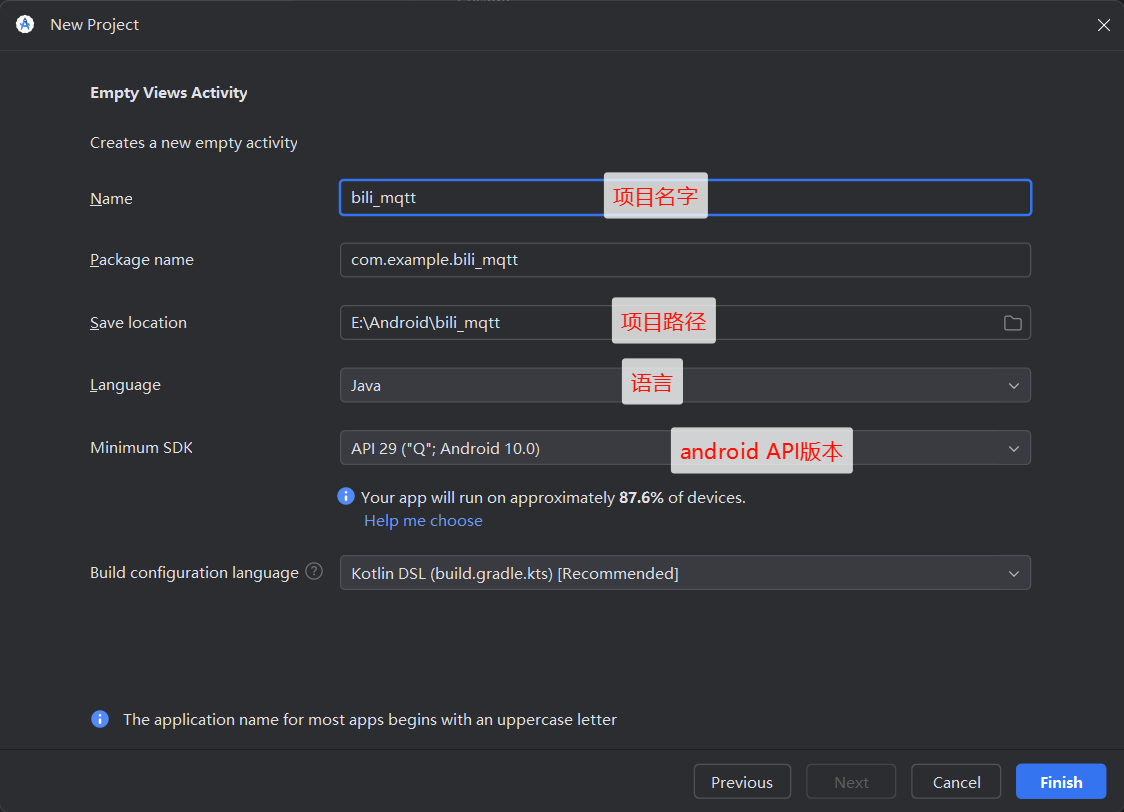
A Tour of the Views
Project View - Directory Overview
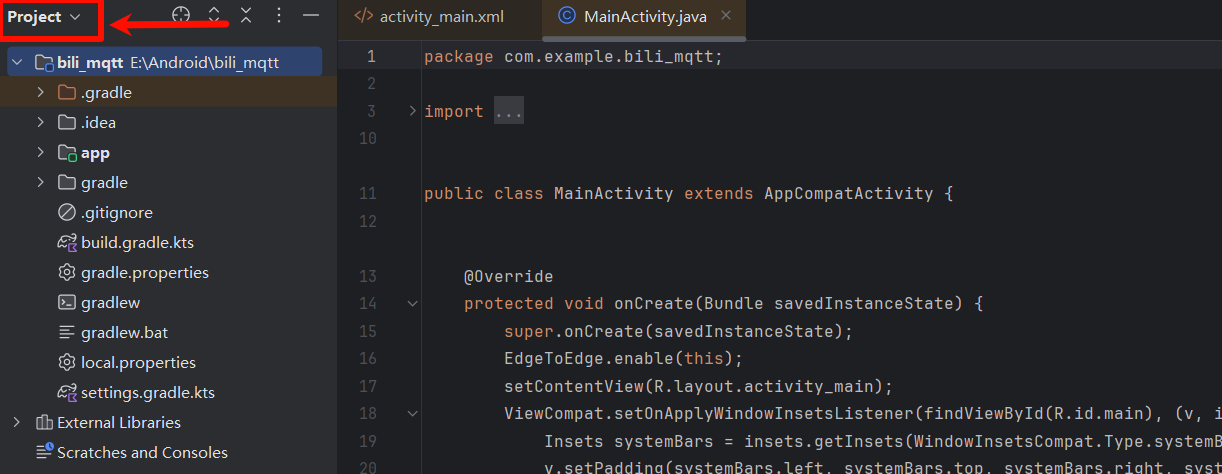
- bili_mqtt: This is the root directory of the whole project. It is named "bili_mqtt" and lives at the path E:\Android\bili_mqtt.
- .gradle: This is a hidden folder that stores the cache data and settings of the Gradle build system. It usually contains temporary files and configuration related to building the project.
- .idea: This is also a hidden folder. It is generated by IntelliJ IDEA (including Android Studio) and stores IDE-specific project settings, such as code styles and run configurations.
- app: This is the main module directory of the project, containing the app's source code, resource files, and other related configuration. In an Android project there is usually at least one module named "app".
- gradle: This folder holds Gradle-related scripts and configuration files, used for building and managing the project.
- .gitignore: This is a text file that tells the Git version control system which files or file types it should ignore and not track, such as build output and temporary files.
- build.gradle.kts: This is a Gradle build script written in the Kotlin DSL. It defines the project's build configuration, such as dependencies, plugins, and build tasks.
- gradle.properties: This is a properties file that can be used to define global properties and variables used when Gradle builds.
- gradlew and gradlew.bat: These two are the Gradle Wrapper scripts, for Linux/Mac and Windows respectively. They let developers run builds without installing Gradle themselves.
- local.properties: This file usually contains configuration info for the local development environment, such as SDK paths. It is not committed to version control.
- settings.gradle.kts: This is a Gradle settings script written in the Kotlin DSL. It defines the subprojects and dependencies in a multi-project build.
Contents of the app Folder
Directory contents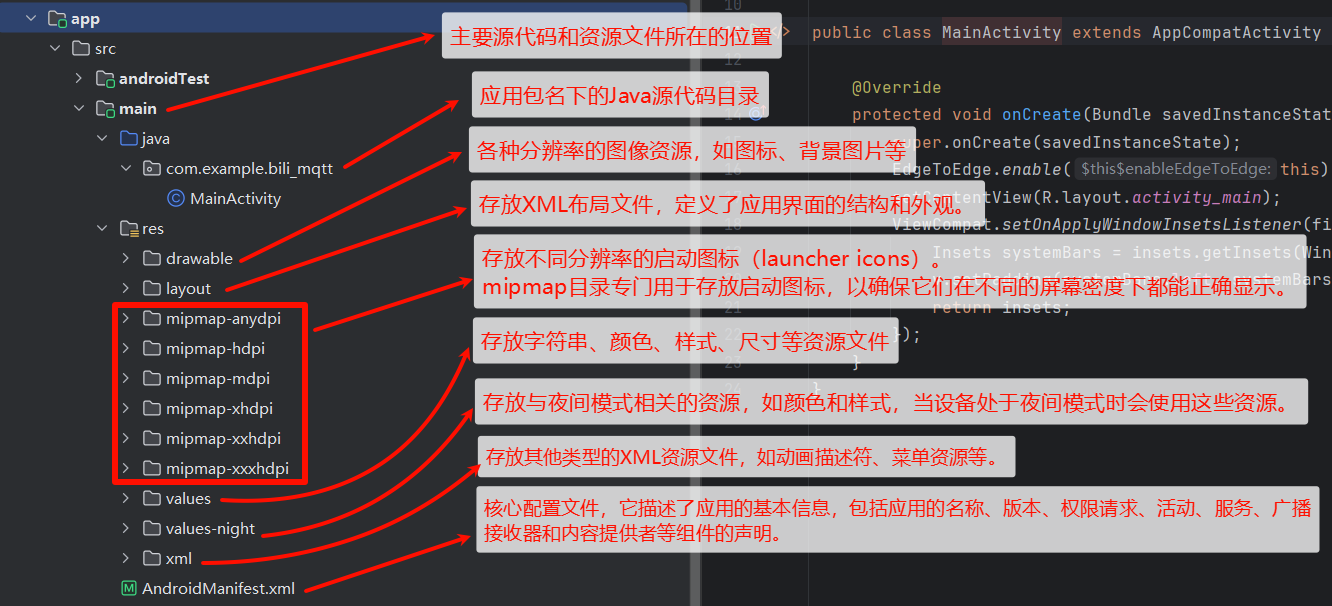
The Main Files
MainActivity
The equivalent of the main function in C, or the backend in a frontend/backend split.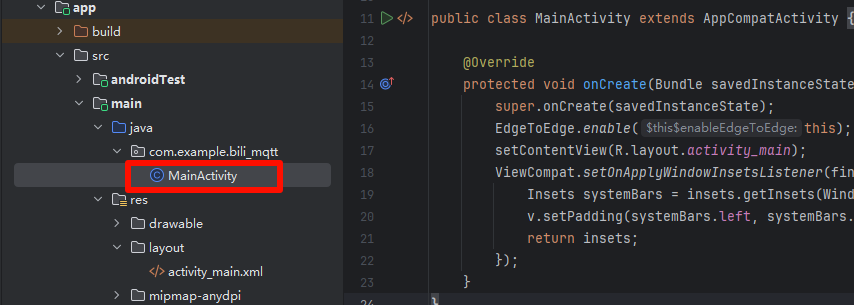
// Defines the package this class belongs to. Packages organize code and also determine the app's unique identifier.
package com.example.bili_mqtt;
// import is like #include in C, and equivalent to import in Python
import android.os.Bundle;
// Import some Android and Jetpack classes, used to build the UI, handle window insets, set up screen adaptation, etc.
import androidx.activity.EdgeToEdge;
import androidx.appcompat.app.AppCompatActivity;
import androidx.core.graphics.Insets;
import androidx.core.view.ViewCompat;
import androidx.core.view.WindowInsetsCompat;
// This is a class that inherits from AppCompatActivity, meaning it is the main screen (Activity), the first screen shown after the app launches.
public class MainActivity extends AppCompatActivity {
    // @Override means this method overrides the parent class's method
    @Override
    protected void onCreate(Bundle savedInstanceState) {        // Roughly the equivalent of a constructor in C
        super.onCreate(savedInstanceState);                     // Calls the parent's onCreate method, passing savedInstanceState, to make sure the parent's initialization logic runs.
        EdgeToEdge.enable(this);        // Enables Edge-to-Edge display mode, letting content extend under the status bar and navigation bar, matching the modern Material Design style.
        setContentView(R.layout.activity_main);     // Sets the layout for this Activity. activity_main.xml is the UI layout file, located in the res/layout directory.

        // Handle the system window Insets (margins)
            // Find the view with the ID "main" in the layout (usually the root layout, such as ConstraintLayout or FrameLayout).
        ViewCompat.setOnApplyWindowInsetsListener(findViewById(R.id.main), (v, insets) -> {
            // systemBars gets the system bar insets (such as status bar height and navigation bar height)
            Insets systemBars = insets.getInsets(WindowInsetsCompat.Type.systemBars());
            // Sets a window insets listener that automatically adjusts the view's padding when the system status bar or navigation bar changes size.
            // v.setPadding(...): sets these insets as the view's padding so content is not covered.
            v.setPadding(systemBars.left, systemBars.top, systemBars.right, systemBars.bottom);
            return insets;
        });
    }
}- Creates an Activity and loads a UI named
activity_main; - Enables EdgeToEdge mode to make the UI more modern;
- Automatically adjusts the root view's padding based on the system status bar / navigation bar size, preventing content from being covered.
activity_main.xml
<?xml version="1.0" encoding="utf-8"?>
// Use `ConstraintLayout` as the root layout
<androidx.constraintlayout.widget.ConstraintLayout xmlns:android="http://schemas.android.com/apk/res/android"
    xmlns:app="http://schemas.android.com/apk/res-auto"
    xmlns:tools="http://schemas.android.com/tools"
    android:id="@+id/main"  // Give this layout an ID. The findViewById(R.id.main) in the Java code uses this ID to find it.
    android:layout_width="match_parent"     // Both width and height are set to fill the parent container (full screen).
    android:layout_height="match_parent"
    tools:context=".MainActivity">      // A design-time attribute that tells Android Studio which Activity this UI belongs to. It doesn't affect runtime, only the preview.

    <TextView
        android:layout_width="wrap_content"     // layout_width and layout_height set to wrap_content, meaning the size adapts to the text content.
        android:layout_height="wrap_content"
        android:text="Hello World!"     // Sets the text to display.

        // Use constraints to center the TextView on the whole screen (all four sides bound to the parent ConstraintLayout).
        app:layout_constraintBottom_toBottomOf="parent"
        app:layout_constraintEnd_toEndOf="parent"
        app:layout_constraintStart_toStartOf="parent"
        app:layout_constraintTop_toTopOf="parent" />

</androidx.constraintlayout.widget.ConstraintLayout>
MQTT App Development
Adding the Library File
Create a new folder MyLib under \app\src\main\res
Drag the MQTT library into that folder, right-click it, and add it as a library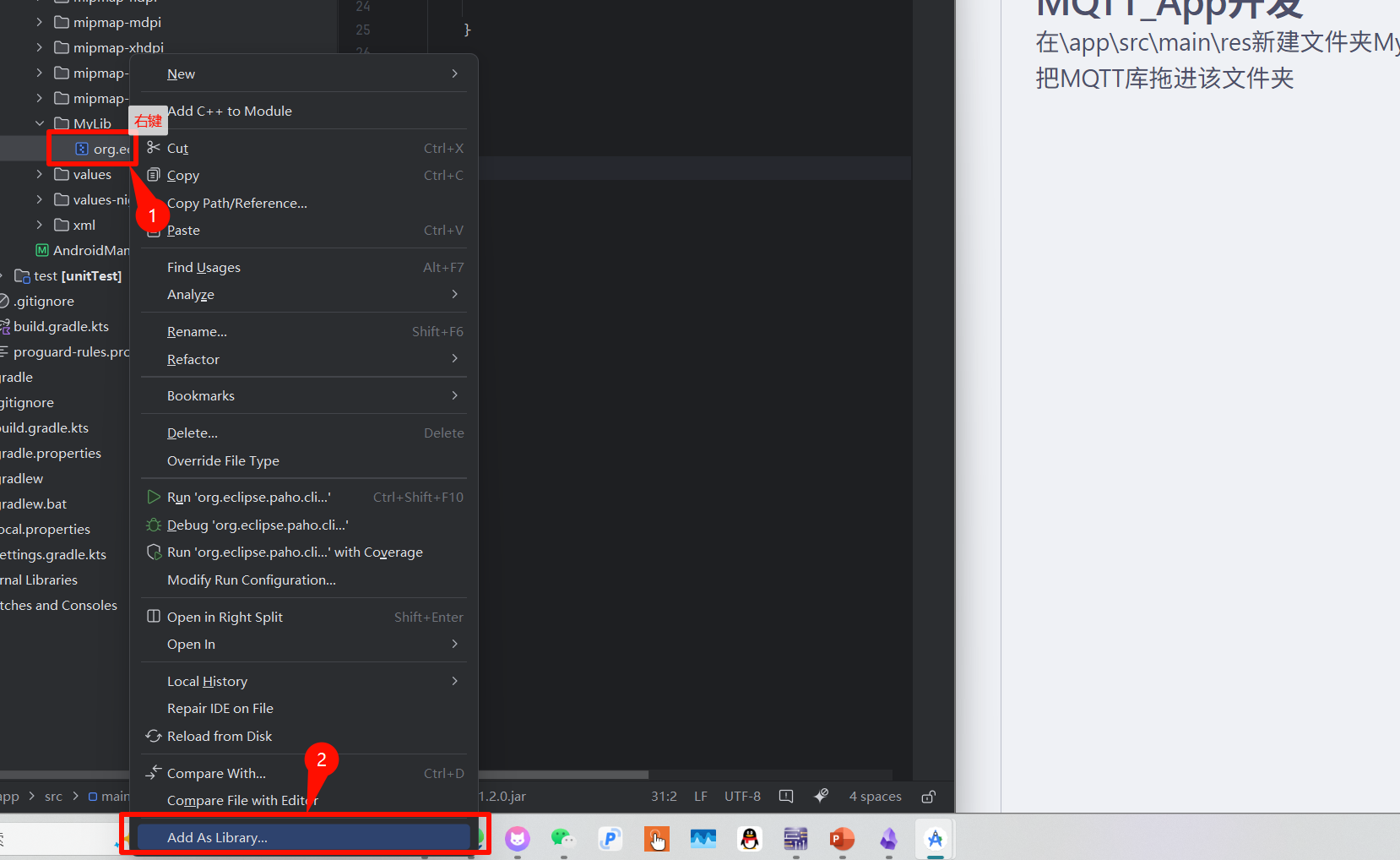
You can see that the library has already been added to \app\build.gradle.kts
dependencies {

    implementation(libs.appcompat)
    implementation(libs.material)
    implementation(libs.activity)
    implementation(libs.constraintlayout)
    implementation(files("src\\main\\res\\MyLib\\org.eclipse.paho.client.mqttv3-1.2.0.jar"))
    testImplementation(libs.junit)
    androidTestImplementation(libs.ext.junit)
    androidTestImplementation(libs.espresso.core)
}
Enabling Network Permissions
Add the network permissions in the \app\src\main\AndroidManifest.xml file
<!--    INTERNET: allows the app to access the internet-->
<uses-permission android:name="android.permission.INTERNET"/>
<!--    ACCESS_NETWORK_STATE: allows the app to view network state, e.g. to determine whether it is currently online.-->
<uses-permission android:name="android.permission.ACCESS_NETWORK_STATE"/>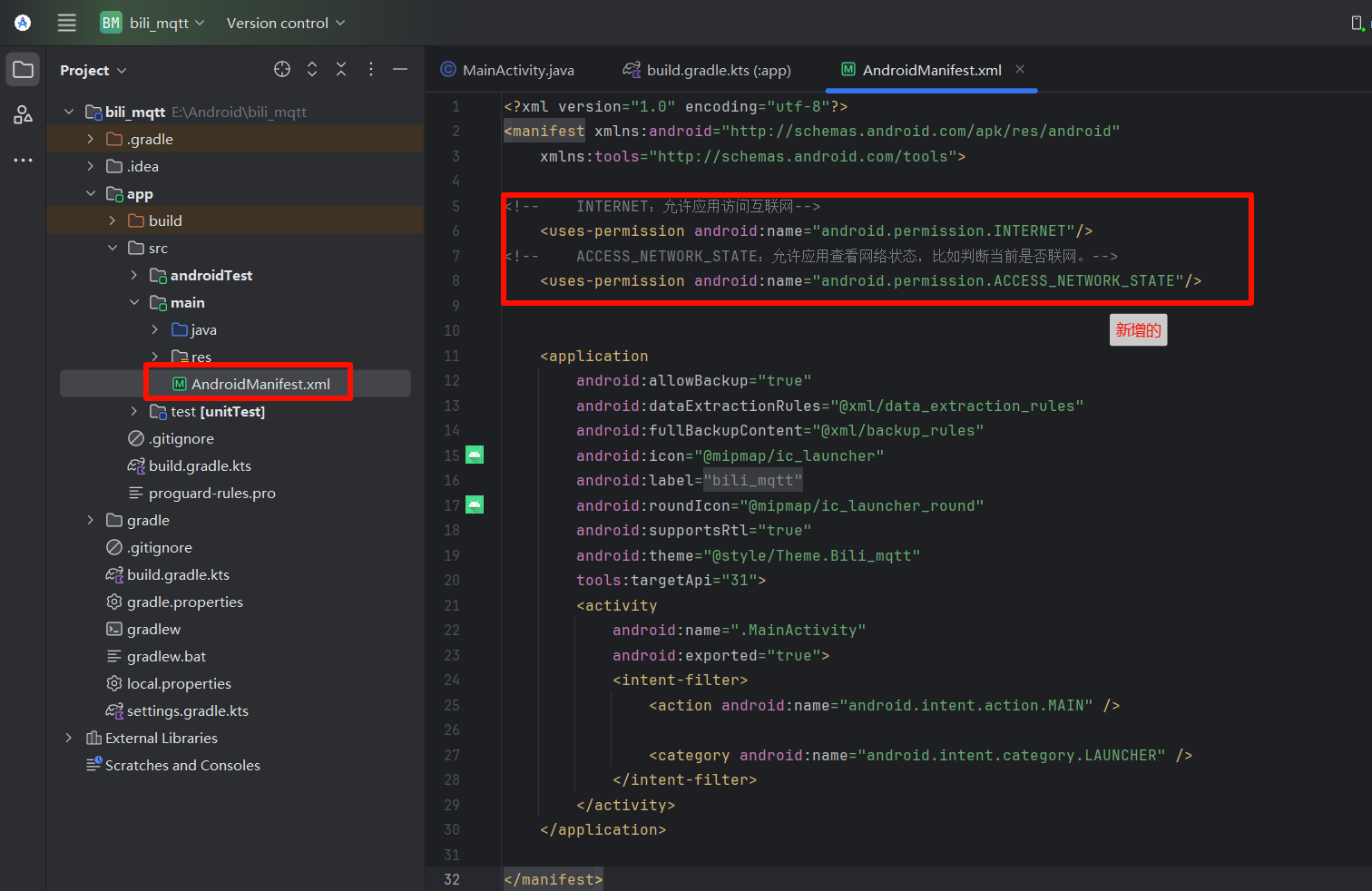
Writing the Frontend UI
Explaining the Main Code
TextView - Text Control
<TextView
    android:layout_width="wrap_content"
    android:layout_height="wrap_content"
    android:layout_marginLeft="100dp"
    android:layout_marginTop="16dp"
    android:text="Fsallen 的MQTT手机程序"
android:textSize="20sp" />| Code | Explanation |
|---|---|
| android:layout_width="wrap_content" | Makes the control's width match the text size |
| android:layout_height="wrap_content" | Makes the control's height match the text size |
| android:layout_marginLeft="100dp" | 100dp (density-independent pixels) from the left edge of the screen |
| android:layout_marginTop="16dp" | 16dp from the top of the screen |
| android:text="Fsallen 的MQTT手机程序" | The text content |
| android:textSize="20sp" | The text font size |
EditText - Input Field Control
<EditText
    android:id="@+id/ip"
    android:layout_width="wrap_content"
    android:layout_height="wrap_content"
    android:hint="服务器IP                         "
    android:textColor="#767676"
    android:textSize="15sp"
    android:layout_marginTop="65dp"
android:layout_marginLeft="180dp" />| Code | Explanation |
|---|---|
| android:id="@+id/ip" | Unique identifier in the file; the backend code finds the control by its id |
| android:hint="服务器IP | The placeholder text for the input |
| android:textColor="#767676" | The placeholder text color (gray) |
Button Control
<Button
    android:id="@+id/connect"
    android:layout_width="wrap_content"
    android:layout_height="wrap_content"
    android:text="连接服务器"
    android:layout_marginLeft="80dp"
    android:layout_marginTop="242dp"/>
Full Code
Here we use RelativeLayout
<?xml version="1.0" encoding="utf-8"?>

<RelativeLayout xmlns:android="http://schemas.android.com/apk/res/android"
    xmlns:app="http://schemas.android.com/apk/res-auto"
    xmlns:tools="http://schemas.android.com/tools"
    android:id="@+id/main"
    android:layout_width="match_parent"
    android:layout_height="match_parent"
    tools:context=".MainActivity">

    <TextView
        android:layout_width="wrap_content"
        android:layout_height="wrap_content"
        android:layout_marginLeft="70dp"
        android:layout_marginTop="16dp"
        android:text="Fsallen 的MQTT手机测试程序"
        android:textSize="20sp"/>

    <TextView
        android:layout_width="wrap_content"
        android:layout_height="wrap_content"
        android:layout_marginLeft="20dp"
        android:layout_marginTop="80dp"
        android:text="MQTT服务器: "/>
    <EditText
        android:id="@+id/ip"
        android:layout_width="wrap_content"
        android:layout_height="wrap_content"
        android:hint="服务器IP                                       "
        android:textColor="#767676"
        android:textSize="15sp"
        android:layout_marginTop="65dp"
        android:layout_marginLeft="120dp" />

    <TextView
        android:layout_width="wrap_content"
        android:layout_height="wrap_content"
        android:layout_marginLeft="20dp"
        android:layout_marginTop="110dp"
        android:text="客户端id: "/>
    <EditText
        android:id="@+id/id"
        android:layout_width="wrap_content"
        android:layout_height="wrap_content"
        android:hint="客户端ID                                      "
        android:textColor="#767676"
        android:textSize="15sp"
        android:layout_marginTop="95dp"
        android:layout_marginLeft="120dp" />

    <TextView
        android:layout_width="wrap_content"
        android:layout_height="wrap_content"
        android:layout_marginLeft="20dp"
        android:layout_marginTop="140dp"
        android:text="用户名: "/>
    <EditText
        android:id="@+id/usename"
        android:layout_width="wrap_content"
        android:layout_height="wrap_content"
        android:hint="用户名                                          "
        android:textColor="#767676"
        android:textSize="15sp"
        android:layout_marginTop="125dp"
        android:layout_marginLeft="120dp" />

    <TextView
        android:layout_width="wrap_content"
        android:layout_height="wrap_content"
        android:layout_marginLeft="20dp"
        android:layout_marginTop="170dp"
        android:text="密码: "/>
    <EditText
        android:id="@+id/passwd"
        android:layout_width="wrap_content"
        android:layout_height="wrap_content"
        android:hint="密码                                               "
        android:textColor="#767676"
        android:textSize="15sp"
        android:layout_marginTop="155dp"
        android:layout_marginLeft="120dp"/>

    <Button
        android:id="@+id/connect"
        android:layout_width="wrap_content"
        android:layout_height="wrap_content"
        android:text="连接服务器"
        android:layout_marginLeft="130dp"
        android:layout_marginTop="220dp"
         />
    <TextView
        android:layout_width="wrap_content"
        android:layout_height="wrap_content"
        android:layout_marginLeft="80dp"
        android:layout_marginTop="340dp"
        android:text="订阅话题: "/>
    <EditText
        android:id="@+id/topic"
        android:layout_width="wrap_content"
        android:layout_height="wrap_content"
        android:hint="话题                            "
        android:textColor="#767676"
        android:textSize="15sp"
        android:layout_marginLeft="150dp"
        android:layout_marginTop="320dp" />

    <Button
        android:id="@+id/subscribe"
        android:layout_width="wrap_content"
        android:layout_height="wrap_content"
        android:text="订阅"
        android:layout_marginLeft="161dp"
        android:layout_marginTop="371dp"/>

    <TextView
        android:layout_width="wrap_content"
        android:layout_height="wrap_content"
        android:layout_marginLeft="80dp"
        android:layout_marginTop="430dp"
        android:text="话题内容: "/>

    <TextView
        android:id="@+id/message"
        android:layout_width="165dp"
        android:layout_height="22dp"
        android:layout_marginLeft="160dp"
        android:layout_marginTop="430dp"
        android:text="未收到信息"/>
    <TextView
        android:layout_width="wrap_content"
        android:layout_height="wrap_content"
        android:layout_marginLeft="80dp"
        android:layout_marginTop="490dp"
        android:text="发布话题: "/>
    <EditText
        android:id="@+id/topic_pub"
        android:layout_width="wrap_content"
        android:layout_height="wrap_content"
        android:hint="话题                            "
        android:textColor="#767676"
        android:textSize="15sp"

        android:layout_marginLeft="150dp"
        android:layout_marginTop="475dp" />
    <TextView
        android:layout_width="wrap_content"
        android:layout_height="wrap_content"
        android:layout_marginLeft="80dp"
        android:layout_marginTop="520dp"
        android:text="话题内容: "/>
    <EditText
        android:id="@+id/topic_pub_message"
        android:layout_width="wrap_content"
        android:layout_height="wrap_content"
        android:hint="话题内容                     "
        android:textColor="#767676"
        android:textSize="15sp"

        android:layout_marginLeft="150dp"
        android:layout_marginTop="505dp" />
    <Button
        android:id="@+id/publish"
        android:layout_width="wrap_content"
        android:layout_height="wrap_content"
        android:text="发布"
        android:layout_marginLeft="161dp"
        android:layout_marginTop="560dp"/>

    <TextView
        android:layout_width="wrap_content"
        android:layout_height="wrap_content"
        android:layout_marginLeft="220dp"
        android:layout_marginTop="650dp"
        android:text="by--B站Fsallen"
        android:textSize="20sp"

 />
    <TextView
        android:layout_width="wrap_content"
        android:layout_height="wrap_content"
        android:layout_marginLeft="270dp"
        android:layout_marginTop="680dp"
        android:text="2025-6-6"
        android:textSize="20sp"

 />
</RelativeLayout>
Writing the Backend Code
Code Structure
Import packages

public class MainActivity extends AppCompatActivity {
    Define the necessary variables
    protected void onCreate(Bundle savedInstanceState) {
        Initialize the controls
        Set the default values
        Connect-to-server button callback {
            Logic handling
        }
        Subscribe-to-topic button callback {
            Logic handling
        }
        Publish-message button callback {
            Logic handling
        }
    }
    MQTT-related functions() {
    }
}
MQTT-Related Functions
MQTT Initialization
private void Mqtt_init(){
    try {
        client = new MqttClient(host, client_id,
                new MemoryPersistence());
        //MQTT connection settings
        options = new MqttConnectOptions();
        //Whether to clear the session. Setting this to false here means the server keeps the client's connection record; setting it to true means every connection to the server is a new identity.
        options.setCleanSession(false);
        //Set the username to connect with
        options.setUserName(userName);
        //Set the password to connect with
        options.setPassword(passWord.toCharArray());
        // Set the timeout, in seconds
        options.setConnectionTimeout(10);
        // Set the session heartbeat interval, in seconds. The server sends the client a message every 1.5*20 seconds to check whether the client is online, but this mechanism does not reconnect.
        options.setKeepAliveInterval(20);
        //Set the callback
        client.setCallback(new MqttCallback() {
            @Override
            public void connectionLost(Throwable cause) {
                //After the connection is lost, reconnection is usually handled here
                System.out.println("connectionLost----------");
                //startReconnect();
            }
            @Override
            public void deliveryComplete(IMqttDeliveryToken token) {
                //Execution reaches here after publish
                System.out.println("deliveryComplete---------"
                        + token.isComplete());
            }
            @Override
            public void messageArrived(String topicName, MqttMessage message)
                    throws Exception {
                //Messages obtained after subscribe reach here
                System.out.println("messageArrived----------");
                Message msg = new Message();
                msg.what = 3;   //Message-received flag
                msg.obj = topicName + "---" + message.toString();
                handler.sendMessage(msg);    // Send it back via the handler
            }
        });
    } catch (Exception e) {
        e.printStackTrace();
    }
}
Connecting to MQTT
private void Mqtt_connect() {
    new Thread(new Runnable() {
        @Override
        public void run() {
            try {
                if(!(client.isConnected()) )  //If not yet connected
                {
                    client.connect(options);
                    Message msg = new Message();
                    msg.what = 31;
                    handler.sendMessage(msg);
                }
            } catch (Exception e) {
                e.printStackTrace();
                Message msg = new Message();
                msg.what = 30;
                handler.sendMessage(msg);
            }
        }
    }).start();
}
Starting the Connection
private void startReconnect() {
    scheduler = Executors.newSingleThreadScheduledExecutor();
    scheduler.scheduleWithFixedDelay(new Runnable() {
        @Override
        public void run() {
            if (!client.isConnected()) {
                Mqtt_connect();
            }
        }
    }, 0 * 1000, 10 * 1000, TimeUnit.MILLISECONDS);
}
Subscribing to a Topic
private void publishmessageplus(String topic,String message2) throws MqttException {
    if(client==null||!client.isConnected()){
        return;
    }
    MqttMessage message = new MqttMessage();
    message.setPayload(message2.getBytes());
    try {
        client.publish(topic,message);
    }catch (MqttException e){
        e.printStackTrace();
    }
}
Writing the Main Logic
Defining the Necessary Variables
private MqttClient client;
private String host = "tcp://45.192.110.61:1883";
private String userName = "fs";
private String passWord = "111111";
private String client_id = "18681672301";
private String mqtt_sub_topic = "test_topic";

private MqttConnectOptions options;
private Handler handler;
private ScheduledExecutorService scheduler;
Getting the Controls
Get the input fields and button controls so we can handle logic related to them, such as reading the text from an input field and writing button callbacks.
EditText editText_IP = findViewById(R.id.ip);
EditText editText_usename = findViewById(R.id.usename);
EditText editText_client_id = findViewById(R.id.id);
EditText editText_passwd = findViewById(R.id.passwd);
EditText editText_topic = findViewById(R.id.topic);
TextView textView = findViewById(R.id.message)

EditText editText_publish = findViewById(R.id.topic_pub);
EditText editText_topic_pub_message = findViewById(R.id.topic_pub_message);
Setting the Default Values
editText_IP.setText(host);
editText_usename.setText(userName);
editText_client_id.setText(client_id);
editText_passwd.setText(passWord);
editText_topic.setText(mqtt_sub_topic);
Writing the Connect-to-Server Code
// Find the button responsible for connecting to the server
        Button btnConnect = findViewById(R.id.connect);
        // Write the button press callback
        btnConnect.setOnClickListener(new View.OnClickListener() {
            @Override
            public void onClick(View v) {
                // What happens after the button is clicked
                // Get the new values
                Toast.makeText(MainActivity.this, "正在初始化MQTT。。。", Toast.LENGTH_SHORT).show();
                // Get the text from the input fields and convert it to strings, for use by Mqtt_init();
                host = editText_IP.getText().toString();
                userName = editText_usename.getText().toString();
                passWord = editText_passwd.getText().toString();
                client_id = editText_client_id.getText().toString();
                Mqtt_init();
                Toast.makeText(MainActivity.this, "正在连接MQTT服务器。。。", Toast.LENGTH_SHORT).show();
                startReconnect();
            }
        });
MQTT Status Monitoring -- Pay Close Attention
Responsible for receiving messages. Write your main logic based on the information here, handling MQTT status.
handler = new Handler() {
            @SuppressLint("HandlerLeak")
            public void handleMessage(Message msg){
                super.handleMessage(msg);
                switch (msg.what){
                        case 1: //Boot self-check update callback
                            break;
                        case 2:  // Feedback callback
                            break;
                        case 3:  //Display after MQTT receives a message   UTF8Buffer msg=new UTF8Buffer(object.toString());
                            textView.setText(msg.obj.toString());  // Modify the TextView's text
                            break;
                        case 30:  //Connection failed
                            Toast.makeText(MainActivity.this, "连接失败", Toast.LENGTH_SHORT).show();
                            break;
                        case 31:   //Connection succeeded
                            Toast.makeText(MainActivity.this, "连接成功", Toast.LENGTH_SHORT).show();
                            break;
                        default:
                            break;
                    }
            }
        };
Writing the Subscribe-to-Topic Code
Button btnsubscribe = findViewById(R.id.subscribe);
        btnsubscribe.setOnClickListener(new View.OnClickListener() {
            @Override
            public void onClick(View v) {
                // What happens after the button is clicked
                if (client == null || !client.isConnected()) {
                    Toast.makeText(MainActivity.this, "请先连接到MQTT服务器", Toast.LENGTH_SHORT).show();
                    return;
                }

                try {
                    client.subscribe(editText_topic.getText().toString(),1);
                    Toast.makeText(MainActivity.this, "订阅成功", Toast.LENGTH_SHORT).show();
                } catch (MqttException e) {
                    Toast.makeText(MainActivity.this, "订阅失败!!!", Toast.LENGTH_SHORT).show();
                    throw new RuntimeException(e);

                }
            }
        });
Writing the Publish-Message Code
Button btnpublish = findViewById(R.id.publish);
btnpublish.setOnClickListener(new View.OnClickListener() {
    @Override
    public void onClick(View v) {
        // What happens after the button is clicked
        // Check whether the server is connected
        if (client == null || !client.isConnected()) {
            Toast.makeText(MainActivity.this, "请先连接到MQTT服务器", Toast.LENGTH_SHORT).show();
            return;
        }
        if(editText_publish.getText().toString().isEmpty() || editText_topic_pub_message.getText().toString().isEmpty()){
            Toast.makeText(MainActivity.this, "话题或话题内容未填写", Toast.LENGTH_SHORT).show();
            return;
        }
        try {
            Toast.makeText(MainActivity.this, "已发布", Toast.LENGTH_SHORT).show();
            publishmessageplus(editText_publish.getText().toString(),editText_topic_pub_message.getText().toString());
        } catch (MqttException e) {
            throw new RuntimeException(e);
        }
    }
});
Full Code
package com.example.bili_mqtt;

import android.annotation.SuppressLint;
import android.os.Bundle;
import android.os.Handler;
import android.os.Message;
import android.widget.Button;
import android.view.View;
import android.widget.EditText;
import android.widget.TextView;
import android.widget.Toast;


import androidx.activity.EdgeToEdge;
import androidx.appcompat.app.AppCompatActivity;
import androidx.core.graphics.Insets;
import androidx.core.view.ViewCompat;
import androidx.core.view.WindowInsetsCompat;

import org.eclipse.paho.client.mqttv3.IMqttDeliveryToken;
import org.eclipse.paho.client.mqttv3.MqttCallback;
import org.eclipse.paho.client.mqttv3.MqttClient;
import org.eclipse.paho.client.mqttv3.MqttConnectOptions;
import org.eclipse.paho.client.mqttv3.MqttException;
import org.eclipse.paho.client.mqttv3.MqttMessage;
import org.eclipse.paho.client.mqttv3.persist.MemoryPersistence;

import java.lang.ref.WeakReference;
import java.util.concurrent.Executors;
import java.util.concurrent.ScheduledExecutorService;
import java.util.concurrent.TimeUnit;

public class MainActivity extends AppCompatActivity {
    private MqttClient client;
    private String host = "tcp://45.192.110.61:1883";
    private String userName = "fs";
    private String passWord = "111111";
    private String client_id = "272935657";
    private String mqtt_sub_topic = "test_topic";

    private MqttConnectOptions options;
    private Handler handler;
    private ScheduledExecutorService scheduler;

    @SuppressLint("HandlerLeak")
    @Override
    protected void onCreate(Bundle savedInstanceState) {
        super.onCreate(savedInstanceState);
        EdgeToEdge.enable(this);
        setContentView(R.layout.activity_main);

        // Initialize the controls first
        EditText editText_IP = findViewById(R.id.ip);
        EditText editText_usename = findViewById(R.id.usename);
        EditText editText_client_id = findViewById(R.id.id);
        EditText editText_passwd = findViewById(R.id.passwd);
        EditText editText_topic = findViewById(R.id.topic);
        TextView textView = findViewById(R.id.message);

        EditText editText_publish = findViewById(R.id.topic_pub);
        EditText editText_topic_pub_message = findViewById(R.id.topic_pub_message);
        // Set the default values
        editText_IP.setText(host);
        editText_usename.setText(userName);
        editText_client_id.setText(client_id);
        editText_passwd.setText(passWord);
        editText_topic.setText(mqtt_sub_topic);

        Button btnConnect = findViewById(R.id.connect);
        btnConnect.setOnClickListener(new View.OnClickListener() {
            @Override
            public void onClick(View v) {
                // What happens after the button is clicked
                // Get the new values
                Toast.makeText(MainActivity.this, "正在初始化MQTT。。。", Toast.LENGTH_SHORT).show();
                host = editText_IP.getText().toString();
                userName = editText_usename.getText().toString();
                passWord = editText_passwd.getText().toString();
                client_id = editText_client_id.getText().toString();

                Mqtt_init();
                Toast.makeText(MainActivity.this, "正在连接MQTT服务器。。。", Toast.LENGTH_SHORT).show();
                 startReconnect();

            }
        });


        Button btnsubscribe = findViewById(R.id.subscribe);
        btnsubscribe.setOnClickListener(new View.OnClickListener() {
            @Override
            public void onClick(View v) {
                // What happens after the button is clicked
                if (client == null || !client.isConnected()) {
                    Toast.makeText(MainActivity.this, "请先连接到MQTT服务器", Toast.LENGTH_SHORT).show();
                    return;
                }

                try {
                    client.subscribe(editText_topic.getText().toString(),1);
                    Toast.makeText(MainActivity.this, "订阅成功", Toast.LENGTH_SHORT).show();
                } catch (MqttException e) {
                    Toast.makeText(MainActivity.this, "订阅失败!!!", Toast.LENGTH_SHORT).show();
                    throw new RuntimeException(e);

                }
            }
        });


        Button btnpublish = findViewById(R.id.publish);
        btnpublish.setOnClickListener(new View.OnClickListener() {
            @Override
            public void onClick(View v) {
                // What happens after the button is clicked
                if (client == null || !client.isConnected()) {
                    Toast.makeText(MainActivity.this, "请先连接到MQTT服务器", Toast.LENGTH_SHORT).show();
                    return;
                }
                if(editText_publish.getText().toString().isEmpty() || editText_topic_pub_message.getText().toString().isEmpty()){
                    Toast.makeText(MainActivity.this, "话题或话题内容未填写", Toast.LENGTH_SHORT).show();
                    return;
                }
                try {
                    Toast.makeText(MainActivity.this, "已发布", Toast.LENGTH_SHORT).show();
                    publishmessageplus(editText_publish.getText().toString(),editText_topic_pub_message.getText().toString());
                } catch (MqttException e) {
                    throw new RuntimeException(e);
                }
            }
        });


        handler = new Handler() {
            @SuppressLint("HandlerLeak")
            public void handleMessage(Message msg) {

                super.handleMessage(msg);
                switch (msg.what){
                    case 1: //Boot self-check update callback
                        break;
                    case 2:  // Feedback callback
                        break;
                    case 3:  //MQTT message-received callback   UTF8Buffer msg=new UTF8Buffer(object.toString());
                        textView.setText(msg.obj.toString());  // Modify the TextView's text
                        break;
                    case 30:  //Connection failed
                            Toast.makeText(MainActivity.this, "连接失败", Toast.LENGTH_SHORT).show();
                        break;
                    case 31:   //Connection succeeded
                            Toast.makeText(MainActivity.this, "连接成功", Toast.LENGTH_SHORT).show();
                        break;
                    default:
                        break;
                }
            }

        };


        ViewCompat.setOnApplyWindowInsetsListener(findViewById(R.id.main), (v, insets) -> {
            Insets systemBars = insets.getInsets(WindowInsetsCompat.Type.systemBars());
            v.setPadding(systemBars.left, systemBars.top, systemBars.right, systemBars.bottom);
            return insets;
        });

    }

    // mqtt initialization
    private void Mqtt_init(){
        try {
            client = new MqttClient(host, client_id,
                    new MemoryPersistence());
            //MQTT connection settings
            options = new MqttConnectOptions();
            //Whether to clear the session. Setting this to false here means the server keeps the client's connection record; setting it to true means every connection to the server is a new identity.
            options.setCleanSession(false);
            //Set the username to connect with
            options.setUserName(userName);
            //Set the password to connect with
            options.setPassword(passWord.toCharArray());
            // Set the timeout, in seconds
            options.setConnectionTimeout(10);
            // Set the session heartbeat interval, in seconds. The server sends the client a message every 1.5*20 seconds to check whether the client is online, but this mechanism does not reconnect.
            options.setKeepAliveInterval(20);
            //Set the callback
            client.setCallback(new MqttCallback() {
                @Override
                public void connectionLost(Throwable cause) {
                    //After the connection is lost, reconnection is usually handled here
                    System.out.println("connectionLost----------");
                    //startReconnect();
                }
                @Override
                public void deliveryComplete(IMqttDeliveryToken token) {
                    //Execution reaches here after publish
                    System.out.println("deliveryComplete---------"
                            + token.isComplete());
                }
                @Override
                public void messageArrived(String topicName, MqttMessage message)
                        throws Exception {
                    //Messages obtained after subscribe reach here
                    System.out.println("messageArrived----------");
                    Message msg = new Message();
                    msg.what = 3;   //Message-received flag
                    msg.obj = topicName + "---" + message.toString();
                    handler.sendMessage(msg);    // Send it back via the handler
                }
            });
        } catch (Exception e) {
            e.printStackTrace();
        }
    }
    // Start the connection
    private void Mqtt_connect() {
        new Thread(new Runnable() {
            @Override
            public void run() {
                try {
                    if(!(client.isConnected()) )  //If not yet connected
                    {
                        client.connect(options);
                        Message msg = new Message();
                        msg.what = 31;
                        handler.sendMessage(msg);
                    }
                } catch (Exception e) {
                    e.printStackTrace();
                    Message msg = new Message();
                    msg.what = 30;
                    handler.sendMessage(msg);
                }
            }
        }).start();
    }
    private void startReconnect() {
        scheduler = Executors.newSingleThreadScheduledExecutor();
        scheduler.scheduleWithFixedDelay(new Runnable() {
            @Override
            public void run() {
                if (!client.isConnected()) {
                    Mqtt_connect();
                }
            }
        }, 0 * 1000, 10 * 1000, TimeUnit.MILLISECONDS);
    }
    // Publish to a topic
    private void publishmessageplus(String topic,String message2) throws MqttException {
        if(client==null||!client.isConnected()){
            return;
        }
        MqttMessage message = new MqttMessage();
        message.setPayload(message2.getBytes());
        try {
            client.publish(topic,message);
        }catch (MqttException e){
            e.printStackTrace();
        }
    }
}
Exporting the App
Generating a Signed APK -- Recommended 🔥
Characteristics: This is the standard packaging method. The APK it produces installs cleanly on any Android phone, with no red warnings.
Step 1: Open the Wizard
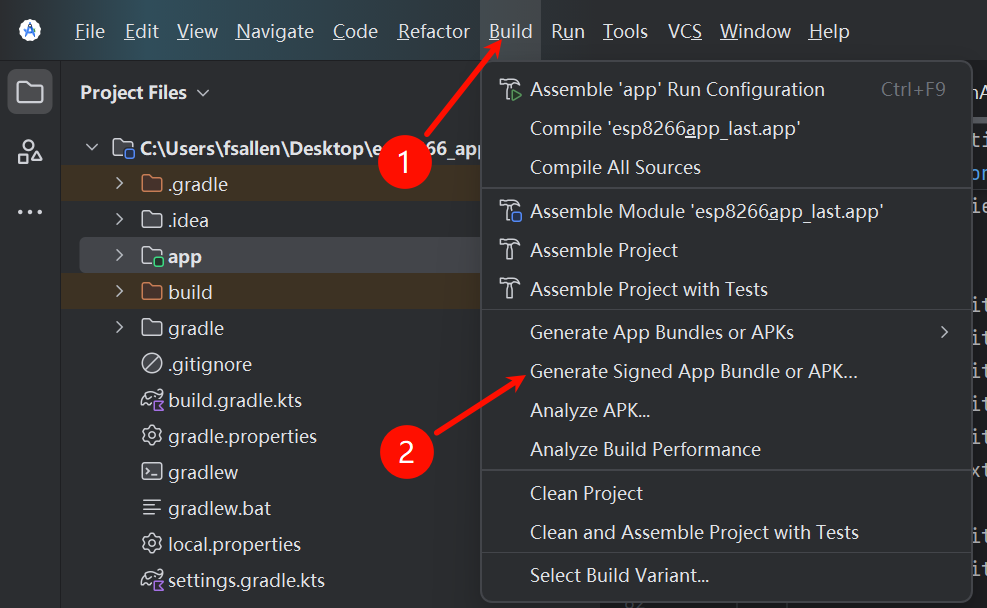
- Click Build in the top menu bar.
- Choose Generate Signed Bundle / APK....
- Select APK, then click Next.
Step 2: Create a Signing File (KeyStore)
If this is your first time, you need to create an "ID card" (signing file):
- Under "Key store path", click Create new....
- Key store path: Click the folder icon, choose where to save it (for example the desktop), and give it a filename (for example
my_key.jks). - Password (two places): Set a password (for example
123456). This protects the file. - Key -> Alias: The default
key0is fine. - Key -> Password (two places): Set a password (usually the same as the one above, so it's easy to remember, for example
123456). - Certificate: For the first line,
First and Last Name, just put any name (for examplefsallen); the other lines can be left blank. - Click OK.
Step 3: Generate
- Go back to the previous screen. The info you just filled in should be auto-completed. Click Next.
- Under Build Variants, choose release.
- Click Create (or Finish).
- Wait for the bottom-right corner to show "Generate Signed APK: ... successfully".

(waiting for the success message)- Click locate in the popup.
- The
app-release.apkin that folder is your final result!
Recommended Learning for Further Development
- Learn to use image controls
- Learn to use linear layouts
- The server info, client id, username, and password can be hardcoded -- there's no need to display them on screen
- Understand where messages are received
- Use Java to parse the received messages and drive your logic based on the parsed information
- Learn to use multithreading
- Thanks to the expert 阿正啷个哩个啷 for this video reference: 【7天Java0基础速成安卓开发】Day1 Android工程代码是怎么运行的
- Recommended course: (学完必会)Android studio基础,从入门到精通,学完小白也能会
Changelog
0ca31-on59d67-onc2b48-on